Login

It\T Soultions 247

Recent Blog Posts

We Love Our Clients!

To show our love, we are offering $50 off of IT Services during the month of February!

Simply mention the ITS-LOVE discount when you schedule your February appointment, and receive $50 off of your February service invoice.


**Restrictions apply:

Not valid for purchase of hardware or software, not valid for monthly management invoices, can not be combined with other offers or discounts, minimum 1 hour service at our standard rate, valid for one-time use only.


Facebook!Blinklist!Blogmarks!BlinkBits!Ask!
  • Comments

by Sally McGhee
used with permission from the Microsoft At Work Site

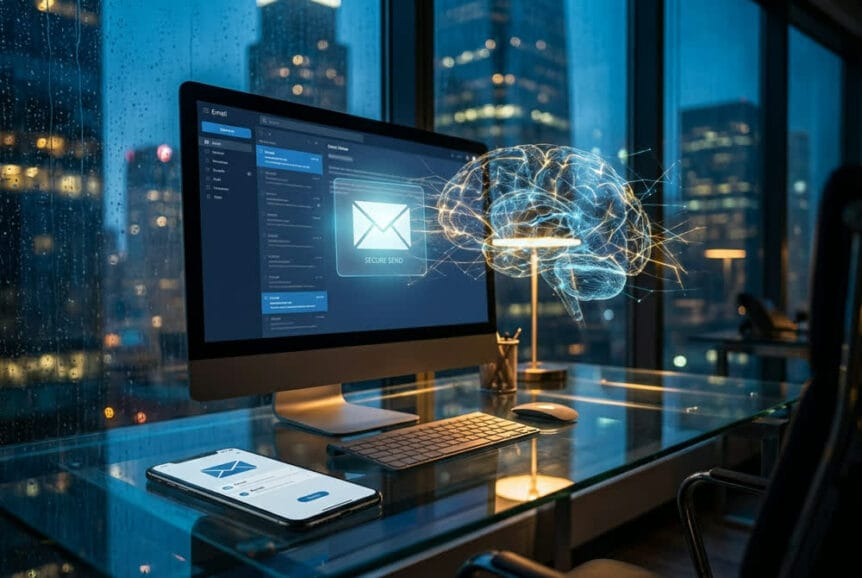
If you’re like a lot of us, you get so much email every day that you might spend as little as 15 seconds scanning a message to determine how it applies to you. Now, imagine that other people are reading your email the same way. If they can't quickly identify the purpose of your message, they’ll probably delete it or leave it in the Inbox for "later"— if later ever comes.

In this article, I give 6 tips to ensure that your email messages are read and get the attention they deserve.

1. Make the purpose of the message clear
When recipients receive your email message, they should be able to see at a quick glance how the message relates to them and why it’s important. They may be looking at a preview of your message in Microsoft Outlook or on a Windows phone or Windows Mobile device, such as a personal digital assistant (PDA). Or they may see only Subject lines in their Inbox. If your Subject line is confusing and irrelevant, your email will surely get deleted in a hurry. Here are some examples of what can be included in Subject lines to make sure the reader opens your mail:

•A standard subject heading such as "Action Requested," "Response Requested," "FYI," or "Read Only," depending on the action indicated in the body of the message.

•The meaningful objective or supporting project that the message relates to, for example, "FY '05 budget forecasting."

•The required action if applicable, for example, "Consolidate departmental budget spreadsheets."

•The due date if applicable, for example, "Due by July 7."

An example of an effective Subject line is "Action Requested—Consolidate all department spreadsheets for FY '06 budget and return to me by June 15th."

2. Tell recipients what action you want them to take
Be completely clear about the actions you want the recipients to take. Be specific and put all the material that is related to an action in one place. To get even faster responses, talk about how the action relates to the recipient's objectives, and always give due dates. It's also important to clarify what type of action you want the recipient to take. There are basically four types of actions you could request. If you make this level of detail clear, the recipient will be most likely to read the email and take the action right away. The four actions include:

•Action: The recipient needs to perform an action. For example, "Provide a proposal for a 5% reduction in Travel & Entertainment expense."

•Respond: The recipient needs to respond to your message with specific information. For example, "Let me know if you can attend the staff meeting at 9:00 A.M. on Friday."

•Read only: The recipient needs to read your message to make sure they understand something. No response is necessary. For example, "Please read the attached sales plan before our next staff meeting on August 12th."

•FYI only: The recipient should file your message for future reference. No response is necessary. In fact, even reading the message is optional. For example, "Enclosed for your records are your completed expense reports."

3. Provide the proper data and documents
Make sure you give recipients all of the information they need to complete an action or respond successfully to your request. Your co-workers shouldn't have to come back to you asking for information, whether it is a supporting document or a link to a file on a shared website. You can include supporting information in the body of the message, in an attached file, or in an attached email. In Windows Live Hotmail, you can use the Quick Add feature, which lets you search for and insert content such as images, video, restaurant details, maps, and movie times into your email messages, without ever leaving Hotmail. In addition, if you want recipients to fill out a form, it's a good idea to attach a sample copy of the form that shows how it should be filled out.

4. Send the message only to relevant recipients
Target your message to the appropriate audience. Only people who have to complete an action on the Subject line should receive your message. Be thoughtful and respectful when you enter names on the To line. People observe your thoughtfulness and the results are more effective. Here are two simple questions to help you filter the To line recipients:

•Does this email relate to the recipient's objectives?
•Is the recipient responsible for the action in the Subject line?

5. Use the CC line wisely
It's tempting to put loads of people on the CC line to cover your bases, but doing so is one of the fastest ways to create an unproductive environment. Here are some things to consider when using the CC line:

•No action or response should be expected of individuals on the CC line. The recipient needs to only read or file the message.

•Only those individuals whose meaningful objectives are affected by the email should be included on the message. If you are not sure that the information is related to a co-worker's objectives, check with that person to see if they want to receive your email on that topic.

6. Ask "final questions" before you click Send
The final thing you want to do is check your work to be sure you are supporting meaningful actions. Sending clear, well-defined messages can reduce the volume of email you send and receive, encouraging correct action, saving time, and limiting email trails. Make sure you ask the following questions before you send the message:

•Have I clarified purpose and actions?
•Have I included supporting documents and written a clear Subject line?
•Did I write the message clearly enough that it does not come back to me with questions?
•Am I sending the message to the correct recipients?
•Have I run the spelling checker and edited the message for grammar and jargon?

Bonus: Don't send junk email
One of the quickest ways to get onto your recipients' "delete radar" is to overwhelm them with meaningless email. Responding to email with "I got your email, thanks," or sending out lots of irrelevant data that you think they might want to know about is a quick way to create a track record of sending unproductive mail.

To summarize, it is incredibly easy to create an unproductive culture using email. Follow these guidelines and you can be sure you and your team are able to keep focused on meaningful objectives and don't create email overload.

Facebook!Blinklist!Blogmarks!BlinkBits!Ask!
  • Comments

During times of economic struggle, most small businesses end up making cuts and changes to keep their businesses in the green. From laying off staff to decreasing business travel, reducing marketing efforts and ending bonuses and raises temporarily - there are a variety of ways small businesses look to cut their expenses. At the same time, they look for ways to increase profitability - especially when operating with reduced staff. Technology becomes even more useful as small businesses strive to increase productivity and efficiency.

There are so many gadgets and technology solutions out there that it can be easy to buy more than you need, or to buy the wrong types of products that just don't deliver the solutions your business needs. When deciding what types of technologies can help your business reach its goals, here are a few things to look for:

Communications - technology is well known for its capability to improve the ability for people to communicate with one another. Whether you've got employees on the road or down the hall, virtual phone systems can route calls to cell phones and keep everyone in touch regardless of location. Instant messaging and email provide quick ways to communicate with the written word and keep documentation of these conversations for future reference. Social media and networking sites provide a way to keep in touch with co-workers, customers, and the competition at a glance.

Data Storage, Warehousing and Search - If you find employees are spending a lot of time looking for certain reports, forms or other data that they need to perform their job responsibilities, investing in network hardware and software to keep track of the whereabouts of your data can be useful.

Telecommuting - many small businesses also find that there isn't a need for all employees to work in the same office building in order to get their work done. Having employees who telecommute requires the technology to make that happen (a secure network for employees to access data they require to do their job; improved communication systems to receive incoming phone calls at their homes or on their cell phones and the ability to keep in touch with co-workers in different locations). Having employees telecommute can save you from needing a larger office space, which keeps your overhead costs lower, too.

Customer Relationship Management - having some sort of CRM software to help you manage your database of clients and prospects is well worth the investment. Many businesses will tell you the "money is in the list"; meaning the amount of money a company earns is directly proportional to the number of people on their mailing list. Some companies use software like ACT, Goldmine or SalesForce to track their clients and leads. Others have custom-built software developed to handle unique needs that can't be addressed with existing software.

Technology makes it possible for small business to increase productivity and compete with larger businesses on a smaller budget, thereby increasing profitability. Efficiency and organization is improved through the use of appropriate data storage, search and mining, customers are better managed through customer relationship management systems, and it is possible for money to be saved when employees telecommute from home. Before investing in any new technology, identify the unique needs of your business and determine which technology will best meet your needs.

Content by Managed Services Provider University

Facebook!Blinklist!Blogmarks!BlinkBits!Ask!
  • Comments

Using Your iPhone: Answers To 13 Questions You Were Afraid To Ask

Article from www.businessinsider.com by Ellis Hamburger

We often hear the same problems from first-time iPhone owners. They don't know how to use their fancy new device.

It can be daunting moving from that ancient flip phone to a powerful touchscreen device. Those newbies don't always know what they're missing. Here are the most common questions we're asked about iPhones, as well as the clever answers to those problems. Plus, you'll find a ton of useful tips and tricks along the way.

"How do I select multiple pictures or emails?"


To select multiple items in your Photos app, tap the arrow in the top right corner of your screen, then start tapping on pictures to select them. You can email a maximum of five photos. To select multiple items in your Mail app, tap Edit in the top right corner of your screen, then tap on emails to select them.

From there, you can move emails, mark them all as read, and delete them.

"How do I get my push emails like on my old Blackberry?"


Setting up your Gmail account by tapping Gmail is not the best way to do it.Setting up Gmail as an "Exchange" account means you can do more cool stuff like get emails pushed to your phone and access all of your Google Calendars.

"Can I view more emails on screen at once?"


The iPhone's default "email preview" makes it so you can't view that many emails on screen at one time. If you want to be more economical about scrolling through emails, check out this option:

Go to your Settings app, then tap Mail, Contacts, and Calendars, then tap "Preview" and pick how many lines you want each email to take up in your inbox. The more lines, the more words of "preview text" you get below each email header.

"How do I change music tracks without unlocking my iPhone?"


Unless you discover this feature accidentally, you probably wouldn't know that if you double-tap your home button, you can play/pause music, as well as snap a quick picture! We use this trick all the time to take pictures and change music tracks.

One more camera tip: use the "volume up" button on your iPhone's side as a camera shutter button.

"My picture came out the wrong way, so I have to cock my head to look at it."


A cool new iOS5 feature is that you can rotate pictures once you've taken them. Open a picture inside your Photos app, tap the screen to bring up your options, and tap edit in the top right corner. Then tap the arrow in the bottom left corner until the imageis the way you like it. Then, tap Save.

"How do I stop my battery from dying so quickly?"


The most important reason that the iPhone's battery life stinks is because everyone uses it so much. But there are a few things you can do to make your battery life a bit better.

1. Turn off the Weather Widget and Stocks Widget in Notifications Center. Go to Settings, Notifications, Weather or Stock Widget, then switch to "Off."

2. Turn down the brightness on your screen a bit. Go to Settings, then Brightness, and make sure "Auto Brightness is "On." Then, lower the brightness slider to just below halfway.

3. Change your email "Fetch" settings. Go to Settings, then Mail Contacts And Calendars, then "Fetch New Data". Turn off Push (if you receive a million emails per day), and change Fetch to "Every 30 Minutes" or more.

"How do I view my week at a glance?"


When you're in your Calendar app, turn your iPhone sideways. That's it!

"Why won't my phone go into landscape mode when I turn it sideways?"


Sorry, but you accidentally tapped the "Orientation Lock" button. To turn off "Orientation Lock", double tap your home button, swipe to the right and tap the arrow button.

"I can't connect to my Wi-Fi network anymore."


Wi-Fi routers are fickle creatures. Whether it's a problem on your iPhone or a router problem, one quick trick to "start from scratch" with your Wi-Fi connection is by forgetting a network you've joined.

Go to Settings, then Wi-Fi, then tap the blue arrow next to the network you want to forget, then tap "Forget This Network."

Once you've forgotten the network, tap it in your Wi-Fi screen to do a fresh re-connect.

"How do I get those emoji icons everybody uses?"


Everyone seems to be having a ball sending emoji emoticons back and forth. Here's how to enable them in your iPhone, no app required!

Go to Settings, then General, then Keyboard, then International Keyboards. Tap "Add New Keyboard" and tap "Emoji."

Now whenever you're typing, you can tap the Globe icon to the left if your space bar to use Emoji emoticons.

"How do I go back to where I just was?"


If you're reading an email and you click a link, you get warped into Safari, the iPhone's web browser. But how do you quickly get back to the email you were reading? Double tap your home button and you'll see a tray pop up. Tap  the bottom left icon to go back to your most recently used app. It's that simple.

"I can't find the settings I'm looking for."


Pretty often, the settings you're looking for (like turning off Facebook's annoying push notifications) aren't actually located inside the app itself.

Go to Settings, then scroll down to a list of apps. Here's where you'll find many miscellaneous settings you won't find elsewhere.

"I hate having to scroll all the way back to the top of the screen."


No matter what app you're in, tap the clock (or anywhere  in the Status Bar) to instantly return to the top of the webpage or app you're looking at.

We use this one all the time.

Need help with something not covered here?


If you want to know how to do everything on your iPhone, you'll need to do some experimenting.

Press every button, go into every Settings menu. Double tap random stuff to see what happens. Long press (hold down your finger) on stuff to see what kind of menus pop up.

This is the best way to ever truly get to know your iPhone.


For more Tech Tips 247 Click Here

Facebook!Blinklist!Blogmarks!BlinkBits!Ask!
  • Comments

Did you know that if you own an Android phone, it can be used as a substitute for an external drive or a USB key? It's easy! Simply plug your phone into a PC with a USB cable, then select "Mount" when you are prompted by  the  system. This will mount the internal storage of the Android device as an external drive, and you can drag and drop files or create folders on the device just as you would with an external USB drive. It is best to do this on an SD (secure digital) card, which you can buy for your phone, if it did not come with one already installed.  


More Tech Tips 247


MoreMo


Facebook!Blinklist!Blogmarks!BlinkBits!Ask!
  • Comments

Contact

I.T. Solutions of South Florida
 
1511 Forest Hill Blvd., S4
West Palm Beach, FL 33406
 
Phone 561-582-9467
 
Copyright © 2012 IT Solutions247. All Rights Reserved.Terms and conditions.
Increase your website traffic with Attracta.com
sikis pornosu turbanli porno izle gay seks film gay sex film grup sex filim oral seks filim jigolo adult film jigolo filmleri kadin seks filmleri kadin sex filmi manken seks filmi manken sex filmi oral seks film porn seks film porn sex film seks pornosu izle sex pornosu yasli porno izle liseli gizli cekim liseli gizli cekim adult porno erotik film siparis liseli sikis amator porno amator film